Start here
Burrow needs two things before it can tell you anything: at least one bill and at least one paycheck. On a fresh install the groundhog on the Home screen says so — “Add a bill or a paycheck and I’ll keep watch” — with a button for each. Five minutes of typing gets you a month that is accurate.
There is no sign-up and no bank connection. That is a deliberate choice, not a missing feature: Burrow never asks for a bank login, so there is no password of yours for anyone to lose. The trade is that you type the numbers, and Burrow does the arithmetic on them.
Adding a bill
Tap the orange + on the Bills tab. The editor asks plain questions.
- What is it? The name you would recognise on a statement — “Rent”, “PPL Electric”, “Affirm · Walmart”.
- Icon. Burrow guesses one from the name. Tap Change to pick another from the grid, which is grouped the way people think about bills: Home, Utilities, Getting around, Subscriptions, Money & debt, Health, Family & pets, Everyday.
- Comes out on its own. Turn this on for anything on autopay. The bill ticks itself off on the due date and never nags you.
- Changes every month. For electric, water, or anything that is a different number each time. Burrow shows a guess based on the average of your last three real amounts, and you correct it when the real bill arrives.
- How much, each time? The usual amount.
- How often? Monthly, every three months, or yearly.
- Due on the — the day of the month. For quarterly and yearly bills you pick the next date instead, and that date becomes the anchor.
- Has an end date. For a loan or a payment plan that finishes. Set the last payment and Burrow stops showing it after that.
If a bill is not showing up, open it and look at the start date. A plan that begins next month will not appear this month — that is correct behaviour, not a bug, and it is the most common surprise.
Paychecks, and confirming what actually landed
Income is added the same way, under the Income tab: Where’s it from?, how much, and how often — weekly, every two weeks, twice a month, monthly, or one time.
Hourly pay is never the same twice, so Burrow treats the amount as an estimate until you say otherwise. On and after payday the row reads tap to confirm. Tap it, type what actually hit the account, and the month recalculates. Confirmed amounts are used as-is; unconfirmed ones stay marked as an estimate so you always know which numbers are real.
The Home screen
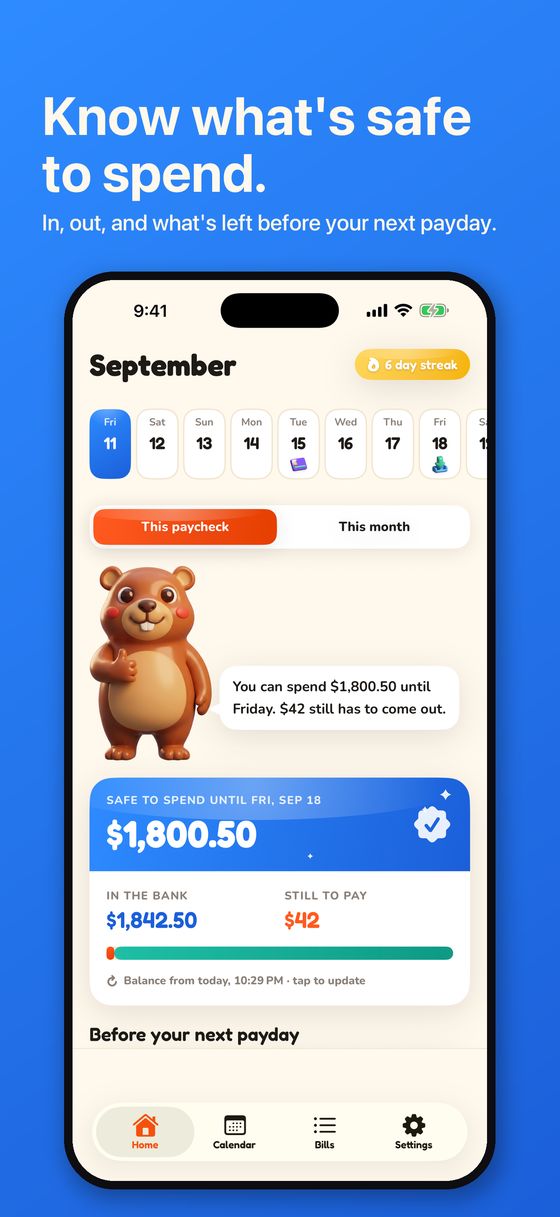
The row of days at the top runs eight weeks ahead. Icons sit under any day that has something on it, and the colour tells you the state at a glance:
- Full colour — still coming.
- Grey — a bill that is paid, or an older paycheck that a newer one has replaced.
- Colour with a small green tick — the paycheck you are living on now.
Tap any day and a sheet slides up listing what lands that day, with amounts and anything worth knowing — whether it comes out on its own, or how much is left on a debt. Every row in that sheet is a door: tap a paycheck to confirm it, a changing bill to put in the real amount, a debt to update the balance. The sheet also has Add a bill on this day, which opens the editor with that date already filled in.
Under the strip, This paycheck and This month switch how the card below reads. Paycheck view covers payday to payday — what this cheque has to cover. Month view is the calendar month. The card shows the big number left, then In, Out, and how many bills are paid, a bar of paid against still-to-come, and the bills that have not come out yet.
Safe to spend, and why there is no bank connection
The card has a quiet purple line: Add your bank balance for an exact number. Open your banking app, read the balance, type it in. Burrow subtracts the bills that have not come out yet and shows safe to spend — money that is genuinely free between now and payday.
The line then reads Balance from today · tap to update, so you always know how stale the number is. After a new payday lands it prompts you to update it again, because a balance from before payday is no longer the truth. Burrow never connects to a bank, which is why this step is manual and why there is no login of yours to protect.
The Bills tab
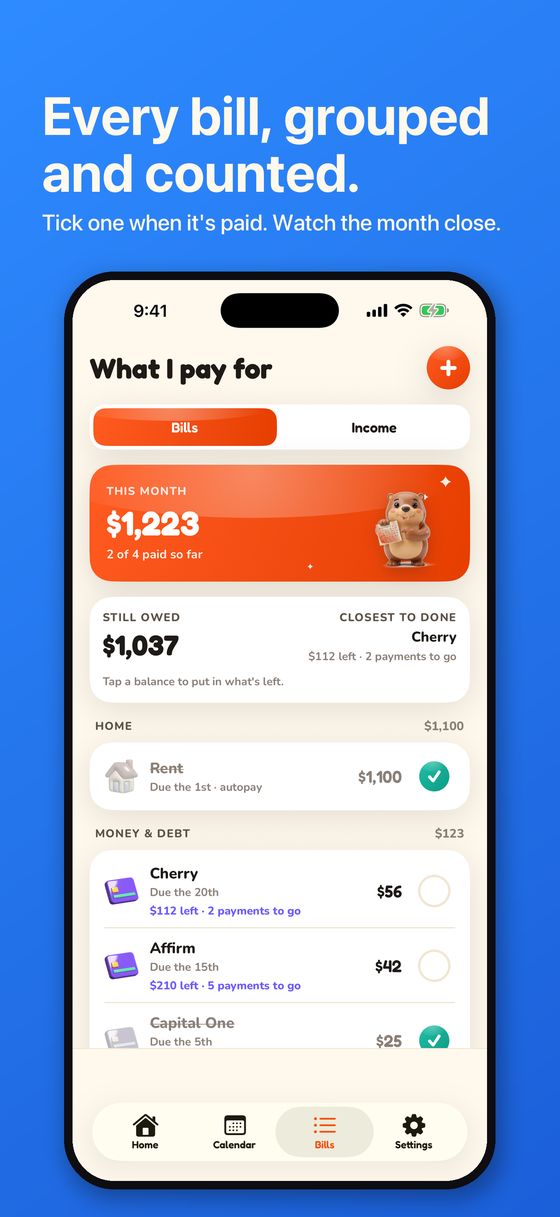
Bills are grouped under the same headings as the icon picker, each group showing its own total for the month, so you can see what utilities actually cost without adding anything up. The card at the top shows the month’s total and how many bills are paid so far.
Tap the circle on the right to mark a bill paid; the row goes grey. Anything on autopay shows a ring instead and ticks itself when the due date passes — there is nothing to tap. Bills that carry a balance float to the top of their group, closest to being paid off first.
What you still owe
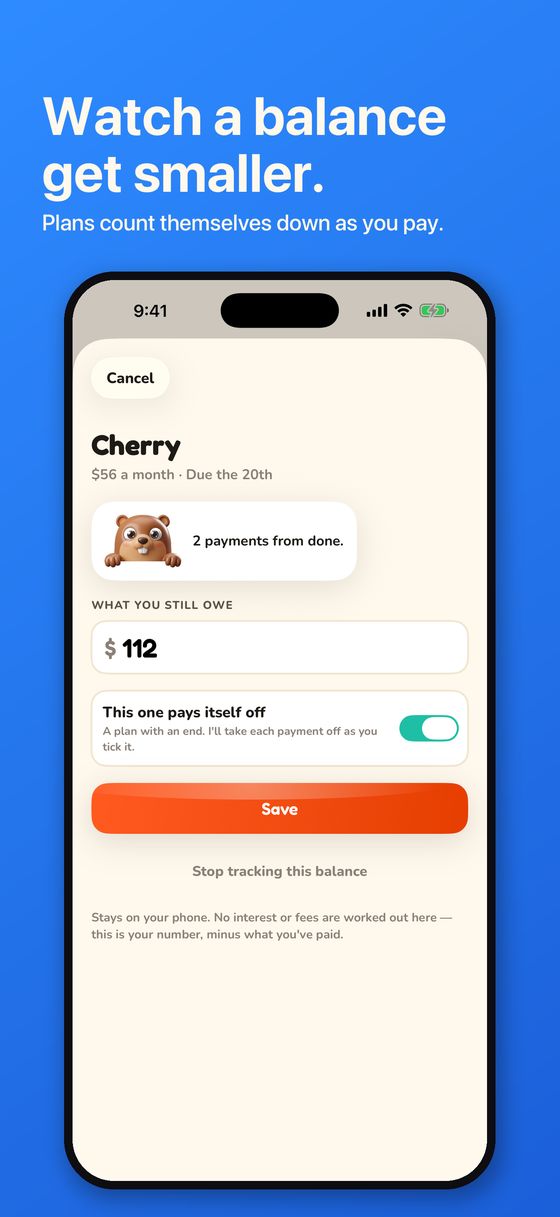
Any bill can carry a balance. Open it and fill in What you still owe. Two kinds behave differently, because they behave differently in real life:
- A payment plan with an end — Affirm, Cherry, a medical plan. Turn on This one pays itself off and every payment you tick comes off the balance automatically.
- A credit card. Leave that toggle off. Spending moves a card balance, so Burrow never guesses: you type what the card says, and the row notes the date you last told it.
If you add an interest rate, the maths changes to match reality. Each payment covers that month’s interest first, and only the rest comes off what you owe — so a $7,600 balance at 22.99% reads as 53 payments, not the 33 you would get by dividing. The sheet tells you the split in plain words, something like “$145.60 of your next $230 goes to interest.” If a payment does not cover the interest at all, Burrow says exactly that and shows no finish date rather than inventing one.
Every one of these screens carries the same line: Estimates only. Not financial advice. Burrow does arithmetic on numbers you typed. It is not your lender’s exact figure and it is not advice.
The what-if sheet
From a debt, tap What if I paid more? It lists what different payments would actually do, each with a finish month, how many months sooner it lands, and how much less interest you would pay:
- Paying as you are now — the baseline.
- Ten, twenty or fifty dollars more a month, or any amount you dial in.
- One extra payment a year.
- Rounding the payment up to the next $25 or $50.
There is also a What you owe overview listing every debt with its balance, payment and finish month, followed by the two orders people usually use — smallest balance first and highest rate first — side by side with their real numbers. Burrow shows both and says so plainly: “Same debts, two orders. Burrow doesn’t pick one for you.” Choosing is yours; the arithmetic is the app’s.
Calendar, streak and badges
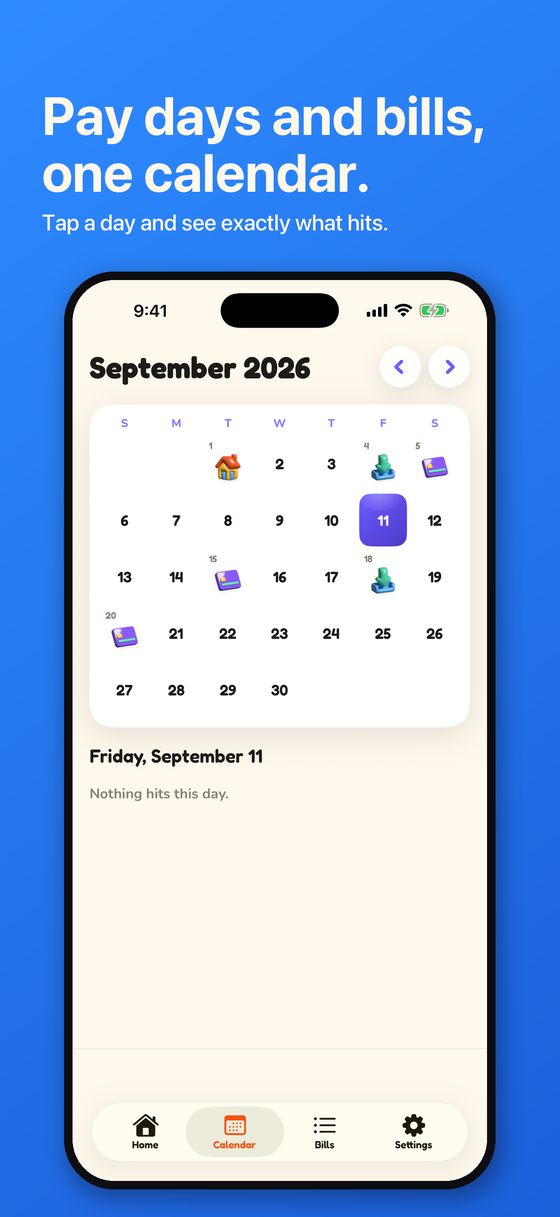
The Calendar tab is the whole month, with icons on the days that have something. Tap a day to see it listed underneath; tap again to fold it away. Busy days stack their icons and show a count, and a day can be expanded when there is more than will fit.
The flame in the Home header counts consecutive days you have opened the app. Badges sit in Settings and come from real things: your first bill paid, a month where every bill was paid, a payday landing, a seven-day streak. As the app puts it, Chuck hands these out and there are no shortcuts.
Settings, export and widgets
Settings holds the things you set once:
- Money — whether Home opens on this paycheck or this month, the day your week starts, and the currency, which follows your phone.
- Bills — whether new bills start out on autopay, a reminder of how the guess for changing bills is made, and a shortcut into What you owe.
- Your money stays here — Export a copy writes a plain JSON file of your bills, paychecks and balance that you can send anywhere. Start over deletes everything on the phone, behind a confirmation.
- Ads & purchases — Remove ads, and Restore purchases if you bought it on another phone.
- About — version, the privacy policy, support, and the estimates-only line.
There are three widgets for the Home and Lock screens: What’s left (money left this month and the next thing that hits), Coming up (the next few bills and paydays), and Next up (the next bill or payday, on the Lock screen). Add them the normal way — long-press the Home screen, tap +, and search for Burrow.
Questions
Does it connect to my bank?
No, and it is not planned. You type what you know. That is why there is no account to create and no bank password for anyone to lose.
Where is my data?
On your iPhone. There is no account, no server and no sync. If you restore a new phone from an iCloud or encrypted computer backup it comes with you; otherwise export a copy first.
Why is one of my bills missing?
Almost always the start date. Open the bill and check Next one is due — a plan that starts next month will not show this month. An end date that has passed does the same thing.
Why does an amount say “estimate”?
Because you have not confirmed it yet. Paychecks and bills that change every month show a guess until you put in the real number, and the row says which it is so you are never misled by your own screen.
What does adding an interest rate change?
It makes the payoff honest. Without a rate, the whole payment comes off the balance. With one, interest is taken first, payments-left is calculated properly, and the what-if numbers account for it.
How do I remove the ad?
Settings → Remove ads. It is $2.99 once, not a subscription. On a new phone, tap Restore purchases.
Something is wrong or confusing
Email matthewwestgoodman@gmail.com with what you expected and what happened. See also the shorter support page and the privacy policy.