Start here
On a fresh install Zingcal comes with five calendars: Finances, Family, School, Work and Business. You can rename any of them, change their color or picture, delete the ones you do not need, and add more. There is nothing to set up before you use it; tap a calendar, tap the plus, type the thing.
There is no sign-up and no bank connection. That is a deliberate choice, not a missing feature. What you type stays on your phone.
Coming from Burrow? Your bills and paydays are on the green Finances calendar, with the same amounts and paid marks. Nothing was lost in the change.
Home
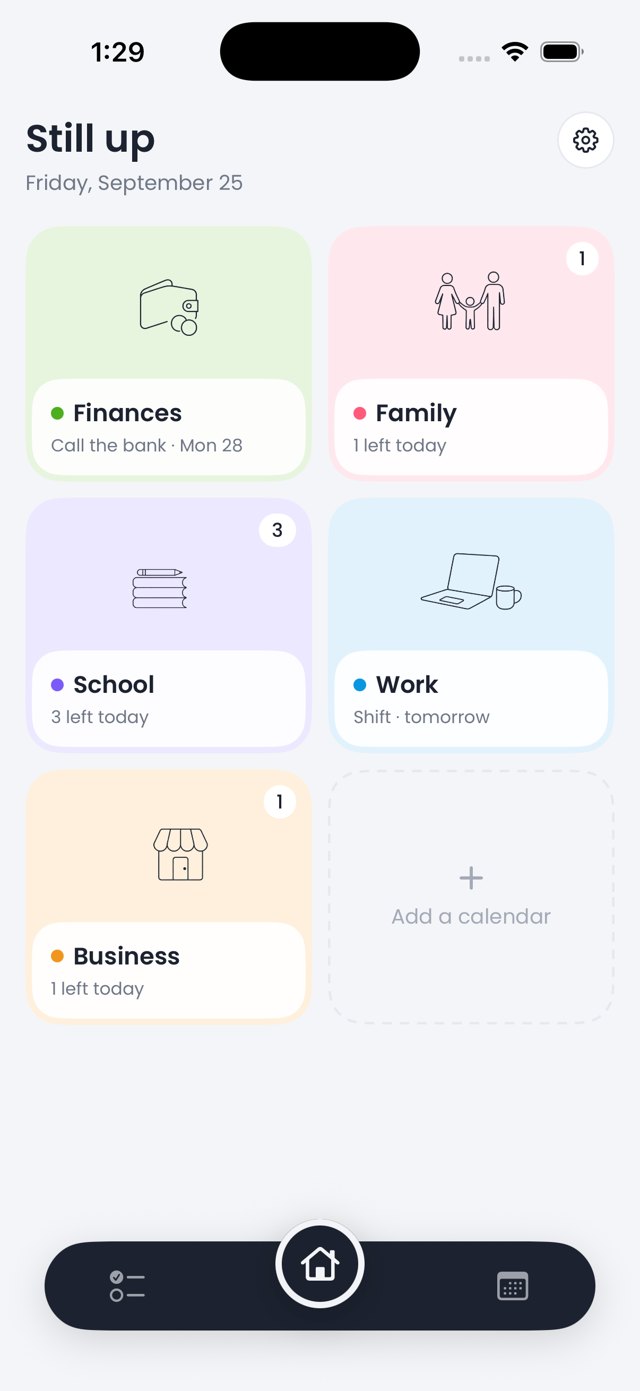
Home is a grid of tiles, one per calendar. Each tile shows the calendar's drawing on its color, its name, and one line underneath: how many things are left today, or if nothing is on today, the next thing coming. Tap a tile to open that calendar.
Press and hold a tile for Edit calendar and Delete calendar. The dashed tile at the end adds a new calendar. Each color can only be used once, so two calendars never look alike.
Inside a calendar
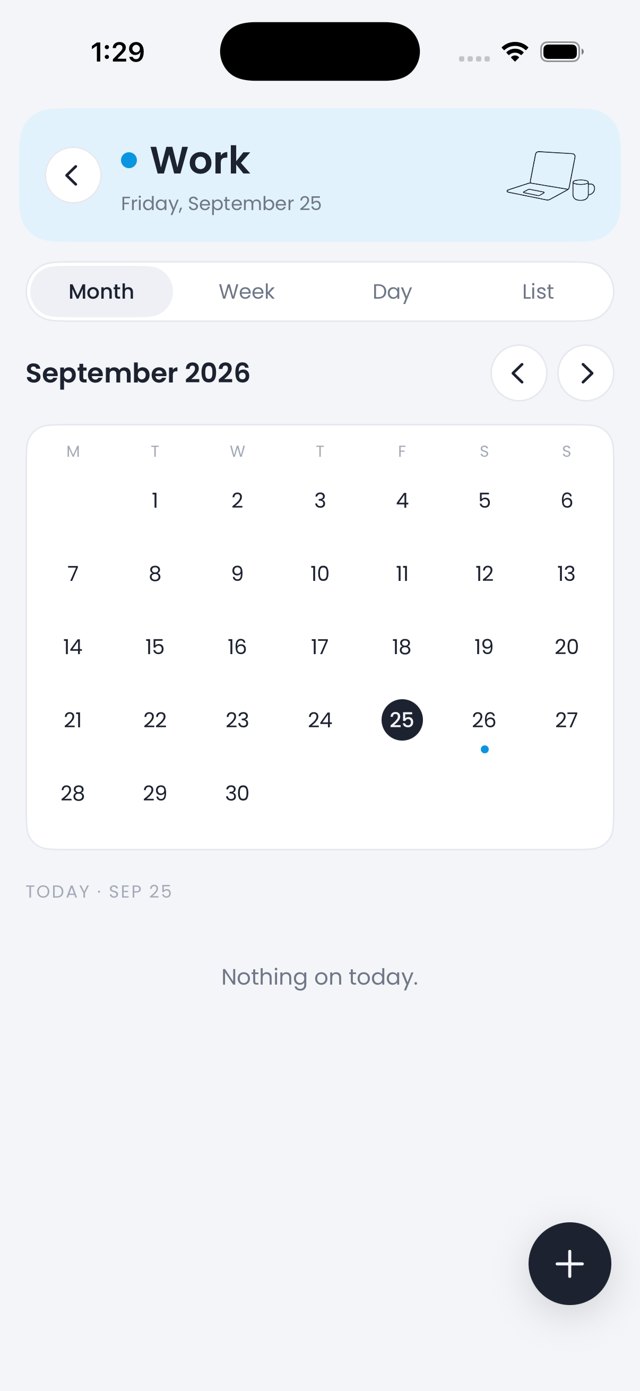
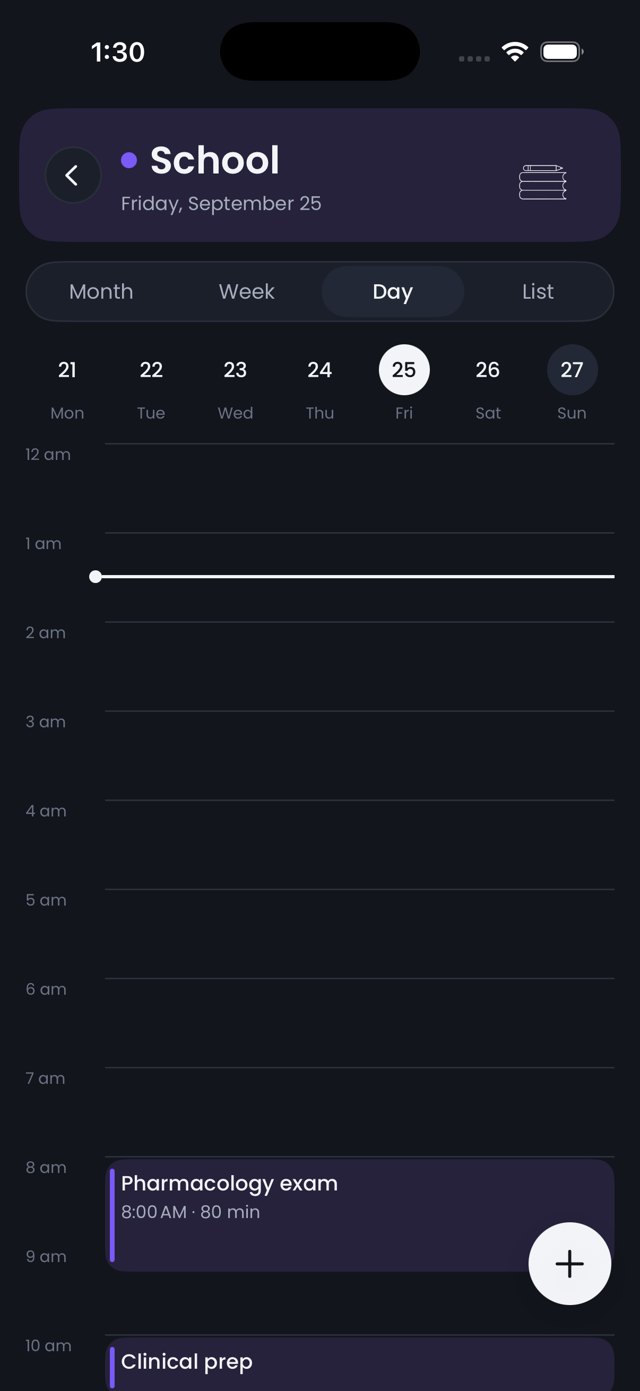
A colored band at the top tells you where you are. Under it, a switcher with four views. Zingcal remembers which view you used last, per calendar.
- Month. A grid with a dot under any day that has something on it. Tap a day and the list below shows what is on it. Swipe sideways or use the arrows to change months.
- Week. Seven days down the page, each with its rows. Empty days show a single line, so a quiet week looks quiet.
- Day. A strip of the week on top, then an hour-by-hour timeline with each timed thing as a block. A dark line marks the current time. All-day things sit above the timeline.
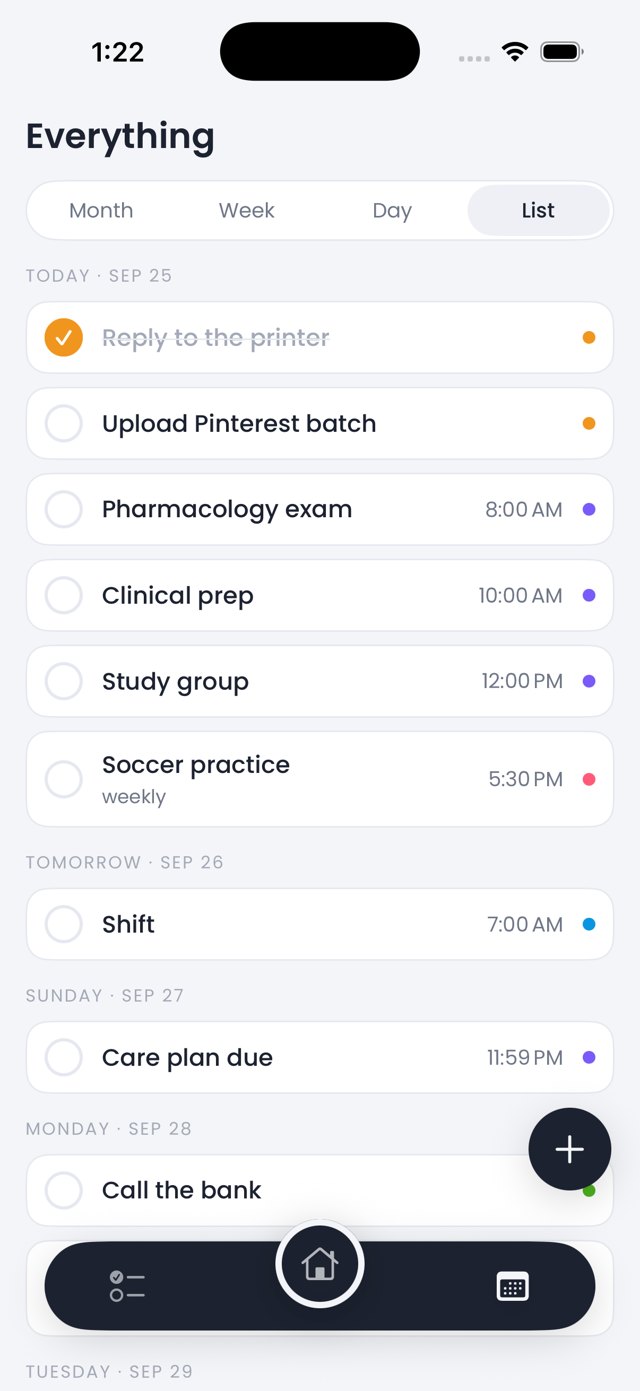
- List. The next three months as a plain list, grouped by day. Only days with something on them appear.
The Today pill in the header jumps back to today whenever you have scrolled away from it.
Adding something
Tap the + in the corner of any calendar. The sheet asks plain questions.
- What is it? The name, top of the sheet.
- Which calendar. A row of colored chips. It starts on the calendar you were in.
- Date. It starts on the day you had selected.
- All day, or a time and how long it lasts.
- Repeats. Every day, week, other week, month or year.
- Remind me. At the time, or 10 minutes, 30 minutes, an hour or a day before. All-day things can remind you that morning at nine, or the day before.
- Amount. Only on the Finances calendar, for things that cost or bring in money.
- Notes. Anything worth remembering.
Tap any row later to open it again, change it, or delete it.
Ticking off and repeats
Every row has a circle on the left. Tap it and the thing is done: the circle fills with the calendar's color and the title goes grey. Tap again to undo.
A repeating thing is ticked off one occurrence at a time. Ticking off this week's soccer practice does not touch next week's. Each occurrence remembers its own state, so the Month dots and the Home badge stay honest.
The Finances calendar
Finances is the green calendar and it does one extra thing: it shows your bills and paydays from Burrow alongside anything you add to it. A bill row shows its amount and whether it comes out on its own; ticking it marks it paid the same way Burrow did. A payday row cannot be ticked, because it lands whether you tick it or not. It shows the amount and whether that amount is real or an estimate.
Anything you add to Finances yourself can carry an amount too, so a one-off like the vet or a school fee sits on the same calendar as the rent.
Today and Everything
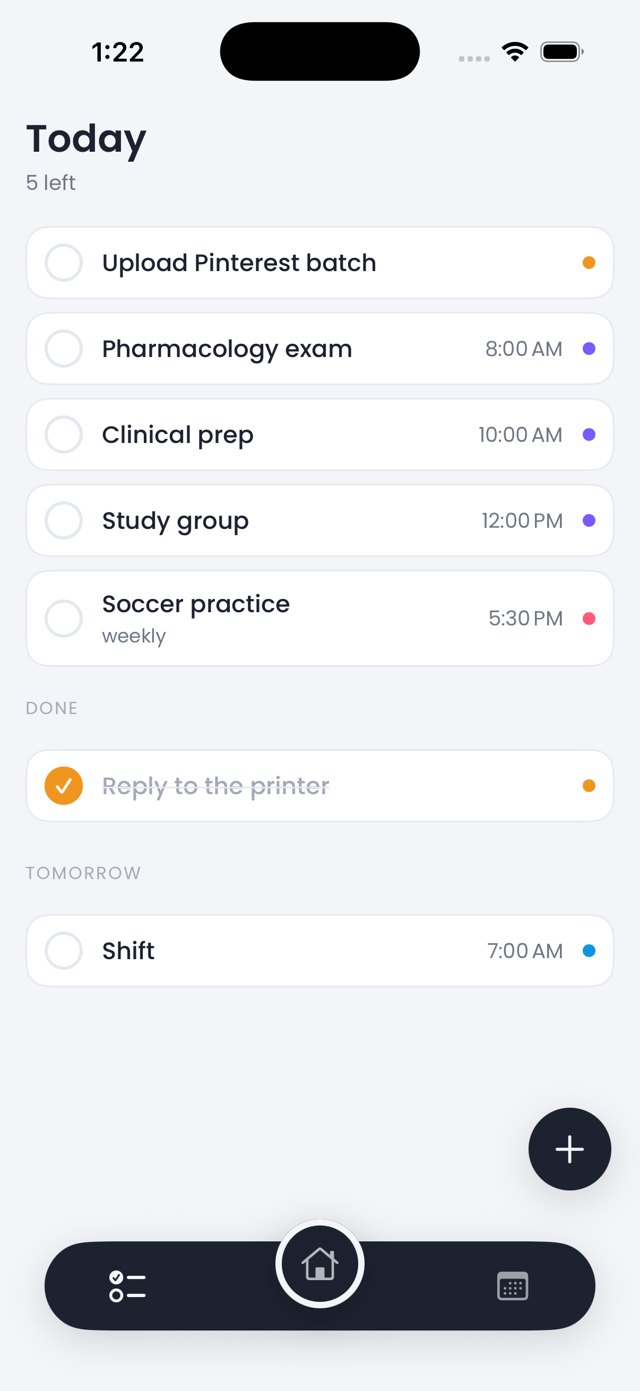
The bottom bar has three places. Today, on the left, is every calendar merged for today, with done things at the bottom and tomorrow underneath. Home is the grid. Everything, on the right, is all your calendars on one Month, Week, Day or List, with dots in each calendar's color.
Reminders
Reminders are ordinary iPhone notifications, scheduled on the phone itself. The first time you set one, Zingcal asks permission. If you said no, Settings in the app will say so and take you to iOS Settings to turn them on. Reminders only fire for things that are not already ticked off.
Settings and icons
The gear on Home opens Settings: turning off the ads, restoring that purchase on another phone, reminders, and the app icon. There are four icons to choose from. The seven-color one is the default. The others use a single green, or light dots on dark, stepping a little lighter dot by dot so the eye traces the Z.
Questions
Can I move something to another calendar?
Yes. Open it and tap a different chip in the calendar row.
Can two calendars share a color?
No. Color is how you tell them apart at a glance, so each is used once.
What happened to safe to spend and the debt tools?
They are not in this version. The bill and payday math still runs underneath the Finances calendar, and those screens may come back inside it once the calendar itself has settled.
Does it sync between my devices?
Not yet. iPad, Mac and Watch versions are planned, and private iCloud sync between your own devices would come with them.
Is my data safe if I delete a calendar?
Deleting a calendar deletes everything on it, and the app asks first. Bills and paydays on Finances are not deleted by removing the Finances calendar; they belong to the money engine underneath.